A single-person interview.
Add one person and a chair. Set the sensor to match your camera. Try 35mm, then 50mm without moving the camera. Watch how much background stays in frame. Move the camera back if you need more room.

Not sure which one.
Most work starts as a diagnostic. We look at how the business runs first, then decide what is worth building.
Use our free 3D shot planner to arrange people and props, compare camera angles and see what a lens covers. Start with a blank scene or bring in a script. No account needed.
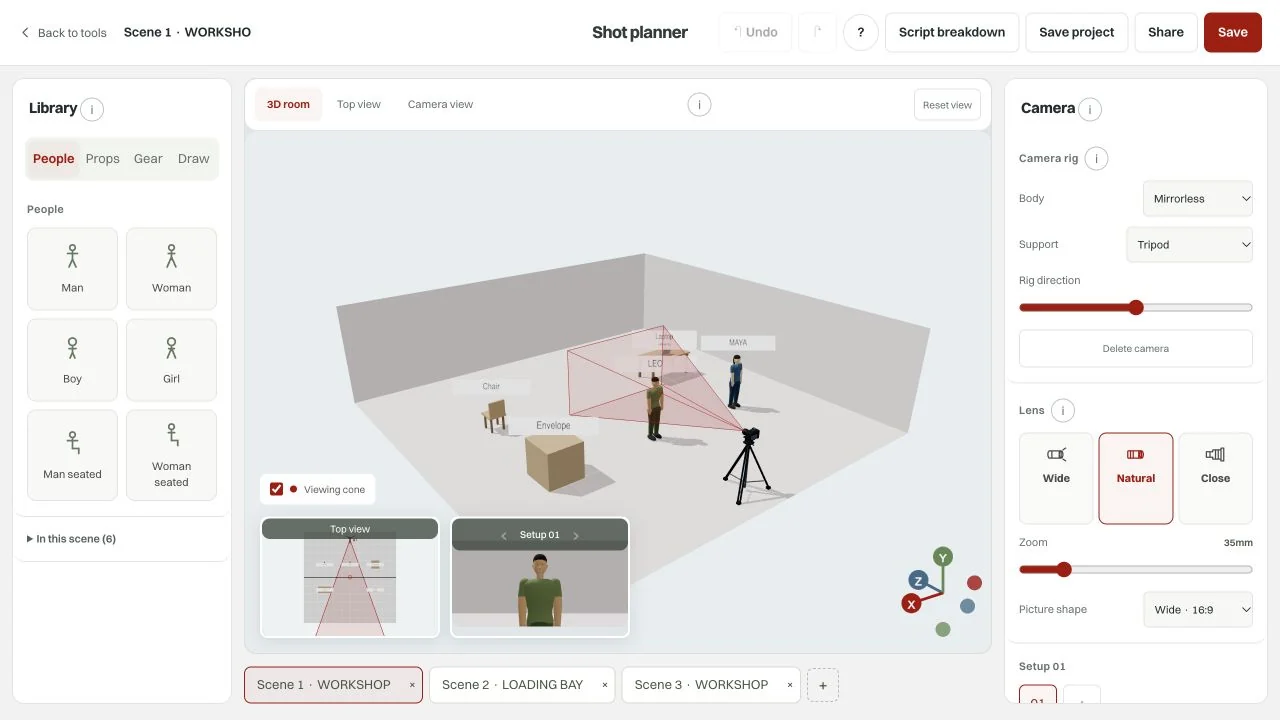
For an interview, you only need a person, a chair and a camera. Press ? inside the planner for a hands-on practice tour. It leaves your real plan unchanged.
For an interview, start with a person and a chair.
Choose People or Props in the Library. On a phone, open Add & move first.
Use Top view to work out where things sit. Select a person or prop, then drag it or use the move arrows.
Drag empty space in 3D room to look around. Drag an item to move it. Undo reverses a change.
For a conversation, turn your subjects towards each other.
Select an item, choose Rotate beside it, then drag left or right. The turn buttons also work.
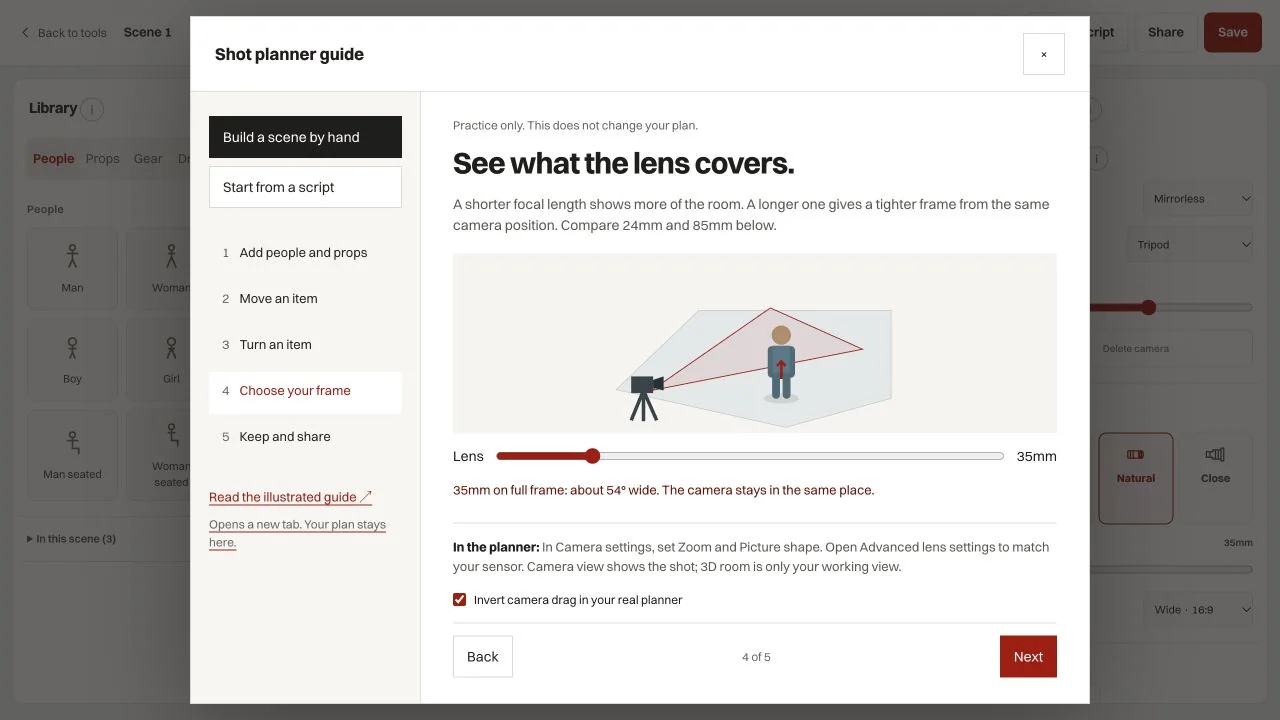
A shorter focal length shows more of the room. A longer one gives a tighter frame from the same camera position. Try 24mm and 85mm from the same position.
In Camera settings, set Zoom and Picture shape. Open Advanced lens settings to match your sensor. Camera view shows the shot; 3D room is only your working view.
TXT and Fountain import reads scene headings and dialogue cues. It does not read every action as a prop or decide how a scene should be blocked. You stay in control of the review.
Choose Import script → Paste script, then paste this text. It should give you one interior scene and MAYA in the cast list. Add the table yourself under Props.
Or choose Try a sample script for three fictional scenes with prepared example props.
INT. WORKSHOP - MORNING

Maya sets an envelope on the table.

MAYA
We have one more delivery.
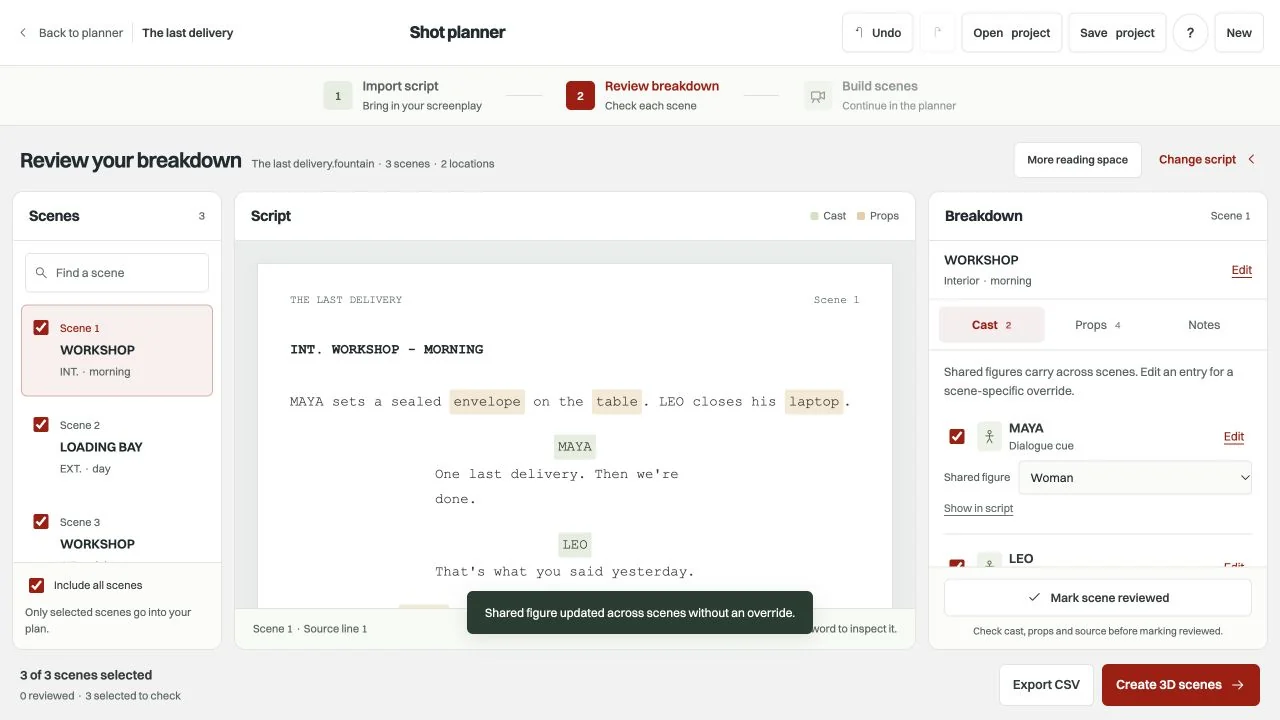
Import a TXT or Fountain file, or paste screenplay text. Headings split the script into scenes. This small example has one scene and one speaking character.
Choose Import script, then upload a file or select Paste script. Try a sample script fills a fictional example without creating a 3D plan yet.
Dialogue cues identify speaking characters. Review the cast list and choose a model for each character. The tool does not infer gender from a name.
Shared figure keeps the same model across scenes. Edit a scene entry if a character needs a different model there. Add silent cast members manually.
Read the action text beside the breakdown. Add the props that matter to your shot. Exclude voice-only characters or scenes you do not want to build.
Add an item under Props, choose a model and mark the scene reviewed. The sample props are prepared examples, not automatic extraction.
Create 3D scenes uses your selected scenes, cast and props. Unassigned items use labelled blocks. The planner asks before replacing its current scenes.
Position the subjects, props and camera yourself. Room size and lens settings are editable defaults, not measurements taken from the script. Rebuild replaces the existing layout.
Save project downloads a .shotplan file you can reopen. It includes the original script, your breakdown and your 3D changes. Nothing is saved automatically.
Use Open project in Script breakdown to restore your file. Share includes the 3D plan only. PNG and JPG are pictures; CSV is a breakdown export, not a restorable project.
These are starting exercises, not fixed camera prescriptions. Check your actual room and equipment before a shoot.
Add one person and a chair. Set the sensor to match your camera. Try 35mm, then 50mm without moving the camera. Watch how much background stays in frame. Move the camera back if you need more room.
Add two people and a table. Turn the people towards each other in Top view. Use a wide setup for both, then add a second setup for a closer frame. Keep the camera on the same side of their eyeline if that is your intended coverage.
Try the fictional sample. Give MAYA and LEO their figures. Review the workshop props and exclude the voice-only DRIVER if they should not appear. Create the selected scenes, then arrange the delivery yourself in 3D.
There is no automatic project history. Keep the right kind of copy before closing the tab. None of these options creates a public project gallery.
| Option | What it keeps | Use it for |
|---|---|---|
| Share | The editable 3D plan. No screenplay or breakdown. | Sending a working 3D link. Anyone with that link can open it. |
| Save PNG / JPG | A storyboard picture of the views and notes. | A call sheet, discussion or visual reference. It cannot restore your editable plan. |
| Save project | A .shotplan file with the imported script, review and 3D layout. | Resuming an imported project through Open project. Keep the file private because it contains the screenplay. |
| Export CSV | A spreadsheet of the script breakdown. | Reviewing cast and props outside the planner. It is not a restorable project. |
Yes. You can use the 3D shot planner and script breakdown without paying or creating an account.
Upload a TXT or Fountain file up to 2 MB, or paste screenplay text. PDF and FDX import are not supported. Export readable text from your writing app first.
No. The parser finds scene headings and dialogue cues. Add props and silent characters yourself. Selected items receive a simple starting layout in 3D, not automatic story blocking.
Your script and project are processed in this browser and are not uploaded by the planner. There is no automatic project history. Save a .shotplan file to keep an imported project. That downloaded file contains your screenplay, so keep it private.
Share creates an editable 3D link without the screenplay or breakdown. Save exports a PNG or JPG storyboard picture. For an imported script, Save project downloads a .shotplan file with the script, breakdown and 3D layout. Open project restores that file.
Yes. Use Add & move for the object library and Camera settings for the lens controls. A larger screen is easier for reviewing long scripts and arranging several objects.
Frame coverage is calculated from the focal length, sensor and camera position you set. Match these to your planned equipment. The models, room and lighting are planning aids, not a photorealistic preview or a substitute for checking the location.
We built Shot Planner for the planning we do at Creatif Work. Use it for your next shoot. If you need a tool built around your own workflow, we can help with that too.